
Downgrade iPhone 3G, 3GS firmware 4.0 to 3.1.3/3.1.2/3.1/3.0.1/3.0
You would like into the past, or do you want to see your iPhone in the old version. Looks like you can not go back into the past, but the iPhone you “100% CAN”. I put together and figure out to do this through a variety of media, and I finally found the right way to get it. And I have practiced many times using Windows 7, not yet for Mac. No problem, let's get started!
As always the steps to downgrade the iPhone is almost the same, only there are a few different. Please continue to read more below.
Important: 4. Download iPhone firmware *ipsw file.
5. TinyUmbrella 4.1.6
1. Connect the iPhone to the computer.
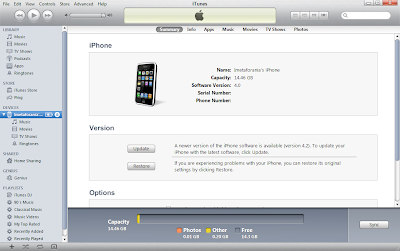
2. Open iTunes.

4. Download iPhone firmware:
7. Warning message appears in iTunes, click OK.

8. Press Shift + Restore (Windows) or alt + Restore (Mac).
9. Find iPhone firmware *ipsw file, click “Open”.

11. Wait until the installation complete.
12. After the message “error occurred (1015)” on iTunes, click OK, then click OK again.


14. Click “Kick Device Out of Recovery”, then “Start TSS Server”.
15. A few minutes later, the iPhone will come out of recovery mode, and can be active again.
16. Click “Stop TSS Server” on TinyUmbrella, then “Exit”, (Click on “Save My SHSH” if you feel you need it).
17. See the screen on your iPhone, more or less like this after a successful downgrade and activated.


18. Back to iTunes, now you can choose whether you want to “Set up as a new iPhone” or “Restore from the backup of:…”, then click “Continue”.


19. Finish.
...
As always the steps to downgrade the iPhone is almost the same, only there are a few different. Please continue to read more below.
Important: 4. Download iPhone firmware *ipsw file.
5. TinyUmbrella 4.1.6
1. Connect the iPhone to the computer.
2. Open iTunes.

Image 1.4.1
3. Synch your iPhone with iTunes (iTunes will store data from your iPhone to your computer, if one day you need).4. Download iPhone firmware:
- iPhone 3G (3.1.3/7E18) click here
- iPhone 3G (3.1.2/7D11) click here
- iPhone 3G (3.1/7C144) click here
- iPhone 3G (3.0.1/7A400) click here
- iPhone 3G (3.0/7A341) click here
- iPhone 3GS (3.1.3/7E18) click here
- iPhone 3GS (3.1.2/7D11) click here
- iPhone 3GS (3.1/7C144) click here
- iPhone 3GS (3.0.1/7A400) click here
- iPhone 3GS (3.0/7A341) click here
- For Windows click here
- For Mac click here
7. Warning message appears in iTunes, click OK.

Image 1.4.2
9. Find iPhone firmware *ipsw file, click “Open”.

Image 1.4.3
10. If a message window pops up in iTunes, select “Restore”.11. Wait until the installation complete.
12. After the message “error occurred (1015)” on iTunes, click OK, then click OK again.

Image 1.4.4

Image 1.4.5
13. Now open “TinyUmbrella (4.1.6)”.14. Click “Kick Device Out of Recovery”, then “Start TSS Server”.
15. A few minutes later, the iPhone will come out of recovery mode, and can be active again.
16. Click “Stop TSS Server” on TinyUmbrella, then “Exit”, (Click on “Save My SHSH” if you feel you need it).
17. See the screen on your iPhone, more or less like this after a successful downgrade and activated.

Image 1.4.6

Image 1.4.7

Image 1.4.8

Image 1.4.9
19. Finish.
...
Read more≫


Downgrade iPhone 3G, 3GS, 4 firmware 4.0.1 to 4.0
1. Connect the iPhone to the computer.
2. Open iTunes.

3. Synch your iPhone with iTunes (iTunes will store data from your iPhone to your computer, if one day you need).
4. Download iPhone firmware:
7. Warning message appears in iTunes, click OK.

8. Press Shift + Restore (Windows) or alt + Restore (Mac).
9. Find iPhone firmware *ipsw file, click “Open”.

10. If a message window pops up in iTunes, select “Restore”.
11. Wait until the installation complete.
12. After the message “error occurred (1015)” on iTunes, click OK, then click OK again.


13. Now open “TinyUmbrella (4.1.6)”.
14. Click “Kick Device Out of Recovery”, then “Start TSS Server”.
15. A few minutes later, the iPhone will come out of recovery mode, and can be active again.
16. Click “Stop TSS Server” on TinyUmbrella, then “Exit”, (Click on “Save My SHSH” if you feel you need it).
17. See the screen on your iPhone, more or less like this after a successful downgrade and activated.


18. Back to iTunes, now you can choose whether you want to “Set up as a new iPhone” or “Restore from the backup of:…”, then click “Continue”.
19. Downgrade process went smoothly, although I have repeated several times to get it.
20. Finish.
...
2. Open iTunes.

Image 1.3.1
3. Synch your iPhone with iTunes (iTunes will store data from your iPhone to your computer, if one day you need).
4. Download iPhone firmware:
- iPhone 3G (4.0/8A293) click here
- iPhone 3GS(4.0/8A293) click here
- iPhone 4(4.0/8A293) click here
- For Windows click here
- For Mac click here
7. Warning message appears in iTunes, click OK.

Image 1.3.2
8. Press Shift + Restore (Windows) or alt + Restore (Mac).
9. Find iPhone firmware *ipsw file, click “Open”.

Image 1.3.3
10. If a message window pops up in iTunes, select “Restore”.
11. Wait until the installation complete.
12. After the message “error occurred (1015)” on iTunes, click OK, then click OK again.

Image 1.3.4

Image 1.3.5
13. Now open “TinyUmbrella (4.1.6)”.
14. Click “Kick Device Out of Recovery”, then “Start TSS Server”.
15. A few minutes later, the iPhone will come out of recovery mode, and can be active again.
16. Click “Stop TSS Server” on TinyUmbrella, then “Exit”, (Click on “Save My SHSH” if you feel you need it).
17. See the screen on your iPhone, more or less like this after a successful downgrade and activated.
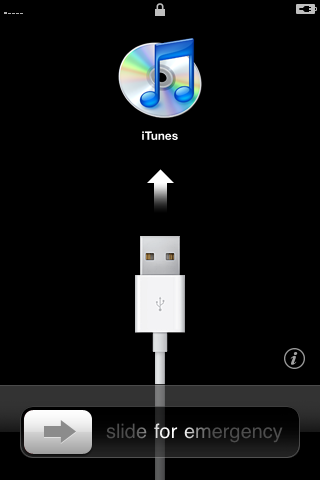
Image 1.3.6
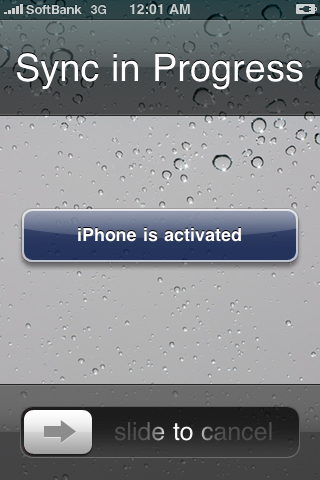
Image 1.3.7
18. Back to iTunes, now you can choose whether you want to “Set up as a new iPhone” or “Restore from the backup of:…”, then click “Continue”.

Image 1.3.8
19. Downgrade process went smoothly, although I have repeated several times to get it.
20. Finish.
...
Read more≫
Downgrade iPhone 3G, 3GS, 4 firmware 4.1 to 4.0.1
1. Connect the iPhone to the computer.
2. Open iTunes.

3. Synch your iPhone with iTunes (iTunes will store data from your iPhone to your computer, if one day you need).
4. Download iPhone firmware:
7. Warning message appears in iTunes, click OK.

8. Press Shift + Restore (Windows) or alt + Restore (Mac).
9. Find iPhone firmware *ipsw file, click “Open”.

10. If a message window pops up in iTunes, select “Restore”.
11. Wait until the installation complete.
12. After the message “error occurred (1015)” on iTunes, click OK, then click OK again.


13. Now open “TinyUmbrella (4.1.6)”.
14. Click “Kick Device Out of Recovery”, then “Start TSS Server”.
15. A few minutes later, the iPhone will come out of recovery mode, and can be active again.
16. Click “Stop TSS Server” on TinyUmbrella, then “Exit”, (Click on “Save My SHSH” if you feel you need it).
17. See the screen on your iPhone, more or less like this after a successful downgrade and activated.


18. Back to iTunes, now you can choose whether you want to “Set up as a new iPhone” or “Restore from the backup of:…”, then click “Continue”.

19. Downgrade process went smoothly, although I have spent plenty of time for that.
20. Finish.
...
2. Open iTunes.

Image1.2.1
3. Synch your iPhone with iTunes (iTunes will store data from your iPhone to your computer, if one day you need).
4. Download iPhone firmware:
- iPhone 3G (4.0.1/8A306) click here
- iPhone 3GS(4.0.1/8A306) click here
- iPhone 4(4.0.1/8A306) click here
- For Windows click here
- For Mac click here
7. Warning message appears in iTunes, click OK.

Image1.2.2
8. Press Shift + Restore (Windows) or alt + Restore (Mac).
9. Find iPhone firmware *ipsw file, click “Open”.

Image1.2.3
10. If a message window pops up in iTunes, select “Restore”.
11. Wait until the installation complete.
12. After the message “error occurred (1015)” on iTunes, click OK, then click OK again.

Image1.2.4

Image1.2.5
13. Now open “TinyUmbrella (4.1.6)”.
14. Click “Kick Device Out of Recovery”, then “Start TSS Server”.
15. A few minutes later, the iPhone will come out of recovery mode, and can be active again.
16. Click “Stop TSS Server” on TinyUmbrella, then “Exit”, (Click on “Save My SHSH” if you feel you need it).
17. See the screen on your iPhone, more or less like this after a successful downgrade and activated.

Image1.2.6
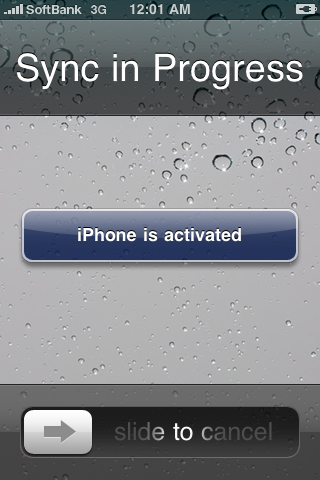
Image1.2.7
18. Back to iTunes, now you can choose whether you want to “Set up as a new iPhone” or “Restore from the backup of:…”, then click “Continue”.

Image1.2.8
19. Downgrade process went smoothly, although I have spent plenty of time for that.
20. Finish.
...
Read more≫
Downgrade iPhone 3G, 3GS, 4 firmware 4.2.1 to 4.1
Why do you want to downgrade your iPhone firmware, that there must be some reason. Step by step to downgrade the iPhone firmware is not difficult. Please continue reading below, as I have previously written.
1. Connect the iPhone to the computer.
2. Open iTunes.

3. Synch your iPhone with iTunes.
4. Download iPhone firmware:
7. Warning message appears in iTunes, click OK.

8. Press Shift + Restore (Windows) or alt + Restore (Mac).
9. Find iPhone firmware *ipsw file, click “Open”.

10. If a message window pops up in iTunes, select “Restore”.
11. Wait until the installation complete.
12. After the message “error occurred (1015)” on iTunes, click OK, then click OK again.


13. Now open “TinyUmbrella (4.1.6)”. In Windows users, right click “Run as administrator” - “Allow access”.
14. After that click “Kick Device Out of Recovery”, then “Start TSS Server”. iTunes will automatically shut down, let it go, just keep your iPhone.
15. A few minutes later, the iPhone will come out of recovery mode, and can be active again.
16. Click “Stop TSS Server” on TinyUmbrella, then”Exit”, (Click on “Save My SHSH” if you feel you need it).
17. See the screen on your iPhone, more or less like this after a successful downgrade and activated.


18. Disconnect the USB cable to your iPhone from the computer, then connect it again.
19. Back to iTunes, now you can choose whether you want to “Set up as a new iPhone” or “Restore from the backup of:…”, then click “Continue”. And finally, ...

20. Downgrade process went smoothly, although I have repeated it several times before that.
21. Finish.
...
1. Connect the iPhone to the computer.
2. Open iTunes.

Image 1.1.1
3. Synch your iPhone with iTunes.
4. Download iPhone firmware:
- iPhone 3G (4.1/8B117) click here
- iPhone 3GS (4.1/8B117) click here
- iPhone 4 (4.1/8B117) click here
- For Windows click here
- For Mac click here
7. Warning message appears in iTunes, click OK.

Image 1.1.2
8. Press Shift + Restore (Windows) or alt + Restore (Mac).
9. Find iPhone firmware *ipsw file, click “Open”.

Image 1.1.3
10. If a message window pops up in iTunes, select “Restore”.
11. Wait until the installation complete.
12. After the message “error occurred (1015)” on iTunes, click OK, then click OK again.

Image 1.1.4

Image 1.1.5
13. Now open “TinyUmbrella (4.1.6)”. In Windows users, right click “Run as administrator” - “Allow access”.
14. After that click “Kick Device Out of Recovery”, then “Start TSS Server”. iTunes will automatically shut down, let it go, just keep your iPhone.
15. A few minutes later, the iPhone will come out of recovery mode, and can be active again.
16. Click “Stop TSS Server” on TinyUmbrella, then”Exit”, (Click on “Save My SHSH” if you feel you need it).
17. See the screen on your iPhone, more or less like this after a successful downgrade and activated.

Image 1.1.6

Image 1.1.7
18. Disconnect the USB cable to your iPhone from the computer, then connect it again.
19. Back to iTunes, now you can choose whether you want to “Set up as a new iPhone” or “Restore from the backup of:…”, then click “Continue”. And finally, ...

Image 1.1.8
20. Downgrade process went smoothly, although I have repeated it several times before that.
21. Finish.
...
Read more≫


